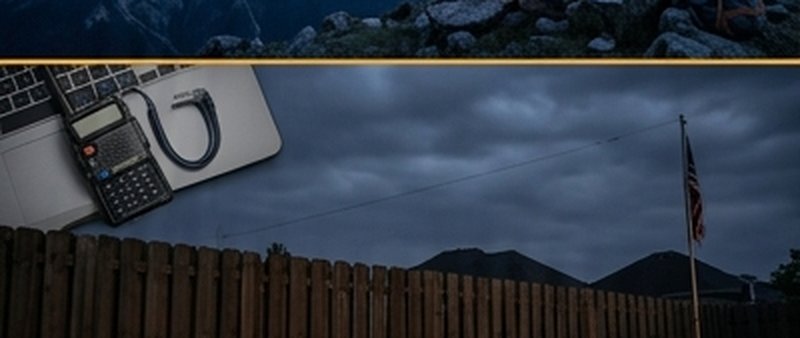
The Baofeng UV-5R is probably the most widely owned handheld radio among new hams — and for good reason. It's inexpensive, it covers 2m and 70cm, and it works well once it's properly programmed. The problem is that programming it through the keypad is a miserable experience. CHIRP solves this completely. Here's how to do it in under 30 minutes.
⚠️ Legal reminder: You must be a licensed amateur radio operator (Technician or higher) to transmit on amateur frequencies. The UV-5R can also receive outside amateur bands, but transmitting outside your licensed privileges is illegal. Program your radio only with frequencies you're authorized to use.
What You Need
- Baofeng UV-5R (or UV-82, BF-F8HP — process is nearly identical)
- CHIRP programming cable — The Baofeng cable uses a Kenwood-compatible 2-pin connector. Buy the cable from CHIRP-recommended sources; cheap unbranded cables often use wrong USB chipsets and fail silently. The RT Systems cable or BTECH cable both work reliably.
- CHIRP software — Free download from chirpmyradio.com. Windows, Mac, and Linux versions available.
- Your local repeater information — From RepeaterBook.com. You'll need output frequency, input offset, and CTCSS/PL tone for each repeater.
Step-by-Step: Programming with CHIRP
Install CHIRP and the Cable Driver
Download CHIRP from chirpmyradio.com and install it. Connect your programming cable to the computer's USB port first (before connecting to the radio). Windows should install the driver automatically. If it doesn't, look up the chipset on the cable's packaging (usually Prolific PL-2303 or FTDI) and install the driver manually. Mac users: you may need the Prolific driver from the Prolific website.
Connect the Cable to the Radio
With the radio off, plug the 2-pin connector into the radio's side speaker/mic jack. The larger plug goes to the speaker port; the smaller plug goes to the mic port. Turn the radio on. The cable doesn't interfere with normal radio operation when connected.
Download the Current Image from the Radio
In CHIRP, go to Radio → Download From Radio. Select your Port (the COM port the cable is on — check Device Manager on Windows if unsure), Vendor: Baofeng, Model: UV-5R. Click OK. CHIRP reads the current memory from the radio. This takes 10–15 seconds. Save this file as a backup immediately — it contains your current channel layout and settings.
Look Up Your Local Repeaters
Go to RepeaterBook.com, enter your ZIP code, and select your state. Look for active repeaters on 2m (144–148 MHz) and 70cm (420–450 MHz). For each repeater you want to program, note: Output frequency (what you listen on), Offset direction (+ or −), and CTCSS/PL tone (the sub-audible tone the repeater requires to open its squelch). Most 2m repeaters use a −600 kHz offset; most 70cm repeaters use a −5 MHz offset.
Enter Channels in the CHIRP Spreadsheet
The CHIRP memory editor looks like a spreadsheet. Click on row 0 (or the first empty row) and fill in: Location (channel number), Name (up to 7 characters), Frequency (the repeater's OUTPUT frequency), Offset (the offset amount, e.g. 0.600), Duplex (+ or −), Tone Mode (Tone), Tone (the CTCSS value, e.g. 100.0 Hz). Repeat for each repeater. You can also use Radio → Import from RepeaterBook to auto-fill nearby repeaters if CHIRP's integration is working.
Upload the New Programming to the Radio
When your channel list is complete, go to Radio → Upload To Radio. CHIRP writes the new memory map to the UV-5R. Takes about 15 seconds. Disconnect the cable, and your radio is programmed. Scroll through channels using the up/down keys — you should see your repeater names on the display.
Understanding CHIRP Column Settings
| Column | What It Means | Common Value |
|---|---|---|
| Frequency | The OUTPUT (receive) frequency of the repeater | 146.940 |
| Offset | How far the input (transmit) frequency is shifted | 0.600 |
| Duplex | Direction of offset: + or − | − (for most 2m repeaters) |
| Tone Mode | How CTCSS/DCS is applied — "Tone" for standard PL tone on transmit | Tone |
| Tone | The specific CTCSS frequency required by the repeater | 100.0 Hz |
| ToneSql | Receive-side squelch tone — usually leave blank | (blank) |
| Mode | FM for VHF/UHF voice | FM |
| Power | High or Low output power for that channel | High |
Troubleshooting Common Problems
CHIRP can't find the radio / COM port error
Make sure the cable is plugged into the radio AND the computer before opening CHIRP. Check Device Manager (Windows) to see if the cable appears as a COM port. If it shows a yellow exclamation mark, the driver failed — reinstall the Prolific or FTDI driver manually.
Radio programs but I can't access the repeater
Check your CTCSS tone — it's the most common culprit. If you're unsure what tone the repeater requires, try listening first without transmitting. If you can hear activity, the frequency is right. Look up the tone again on RepeaterBook or contact the repeater's sponsor club directly.
Radio transmits but the repeater doesn't respond
Check your offset direction. A 2m repeater at 146.940 MHz has its input (where you transmit) at 146.340 MHz — a −600 kHz offset. Getting this backwards means you're transmitting on the output frequency rather than the input.
Tip: Save your CHIRP .img file somewhere safe. When you need to re-program after a factory reset or battery issue, you can restore your entire channel plan in one upload instead of re-entering everything.
Understanding Memory Channels vs VFO Mode
The UV-5R operates in two modes you'll toggle between constantly. VFO mode (sometimes called frequency mode) lets you manually dial in any frequency — useful for scanning or finding a new repeater. Memory channel mode stores your pre-programmed repeater frequencies so you can step through them with the arrow keys without re-entering everything each time. The MR/VFO button on the keypad switches between them. For day-to-day use, you'll mostly operate in memory channel mode once you've loaded your repeaters.
CHIRP: The Right Way to Program Any Baofeng
Hand-programming a Baofeng UV-5R is technically possible but tedious and error-prone — the menu system is not user-friendly, tones are buried three levels deep, and it's easy to set the wrong CTCSS encode vs decode. CHIRP (chirpmyradio.com) solves all of this. It's free, open-source, runs on Windows, macOS, and Linux, and supports over 400 radio models including every Baofeng variant.
You'll need a programming cable — the Baofeng-compatible Kenwood-style cable with a Prolific or CH340 USB chip. Buy from a reputable source; counterfeit Prolific chips cause driver headaches on Windows 10/11. The BTECH cable is widely recommended and runs about $12.
Step-by-Step: Programming Repeaters with CHIRP
Once CHIRP is installed and your cable is connected:
- Radio → Download from Radio — read the current contents of the radio so CHIRP has a baseline. This prevents accidentally clearing channels you want to keep.
- Import from RepeaterBook — Go to Radio → Import → RepeaterBook.com. Enter your ZIP code and radius. CHIRP pulls live repeater data including output frequency, offset, CTCSS tone, and mode. Select the repeaters you want, click import.
- Review the channel list — Check that offset direction (+/-) and tone encode values look correct for your area. You can also manually add simplex frequencies: 146.520 MHz (national 2m calling), 462.675 MHz (GMRS simplex), and your local ARES simplex channel.
- Radio → Upload to Radio — Writes everything to the UV-5R. Takes about 10 seconds. Done.
Essential Settings Beyond Channels
While you have CHIRP open, check these settings in the Settings tab:
- TX Power: Set to Low (1W) for most situations. High power (4–5W) on a rubber duck antenna doesn't dramatically improve repeater access but does drain the battery faster and generate more heat.
- Roger Beep: Turn it off. It's annoying on busy repeaters and adds transmission length unnecessarily.
- VOX: Leave disabled unless you have a specific hands-free need. VOX triggers on ambient noise and causes unintentional transmissions.
- Squelch: Level 5 is a good starting point — open enough to hear weak stations, tight enough to reject noise when no one is transmitting.
- Battery Saver: Enable it. Extends standby time significantly with no practical downside for typical monitoring use.
Common Mistakes and How to Fix Them
Radio transmits but the repeater doesn't respond: The CTCSS tone isn't being encoded, is set to the wrong frequency, or you've accidentally set it as decode-only instead of encode. In CHIRP, check the Tone Mode column — it should say "Tone" (encode only) or "TSQL" (encode + decode) and the Tone column should match the repeater's required tone from RepeaterBook.
You hear the repeater but nobody hears you: Check your offset direction. If the repeater output is 146.880 MHz with a negative offset, your transmit should be 146.280 MHz. The UV-5R sometimes sets offset direction incorrectly on import — verify it in CHIRP's Duplex column (should show "-" or "+" not "off").
Driver issues on Windows: If Windows doesn't recognize the cable, right-click the device in Device Manager, select Update Driver, and point it to the Prolific driver downloaded directly from prolific-usa.com. Avoid automatic Windows Update drivers for this chip.
Beyond the Basics: BaoFeng Limitations to Know
The UV-5R is an excellent starter radio but has real limitations worth knowing. The receiver is relatively insensitive compared to name-brand Icom or Yaesu handhelds — in a fringe coverage area, a Yaesu FT-65R will often decode a repeater signal that the Baofeng misses. The audio quality is mediocre, which becomes apparent in noisy environments like a vehicle with the window down. And the battery life, while adequate, won't match a Kenwood or Icom HT.
For EmComm use, many ARES groups now require members to use type-accepted radios (Yaesu, Icom, Kenwood) because older Baofeng models weren't certified under Part 15/90 rules. The newer Baofeng UV-5R V2 and BTECH UV-5X3 addressed some certification concerns — check with your ARES section before deploying one in an official activation.